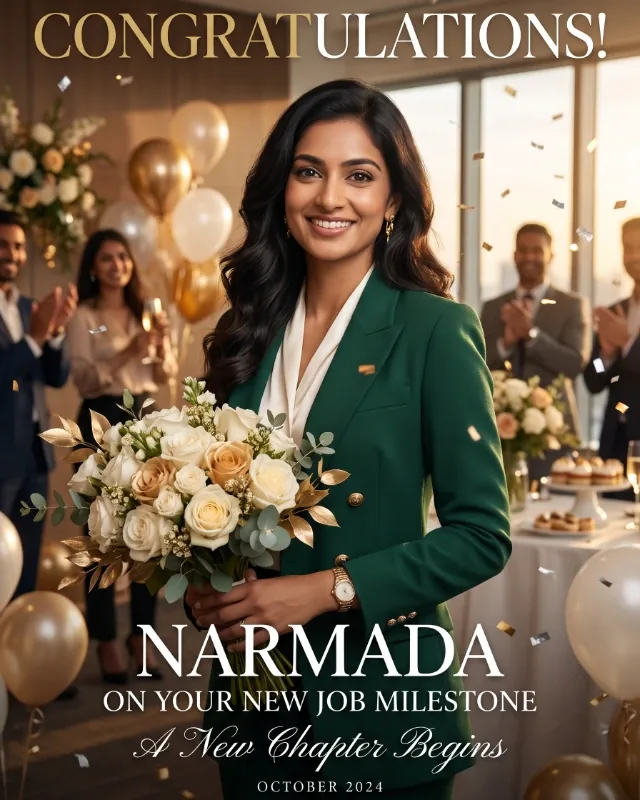
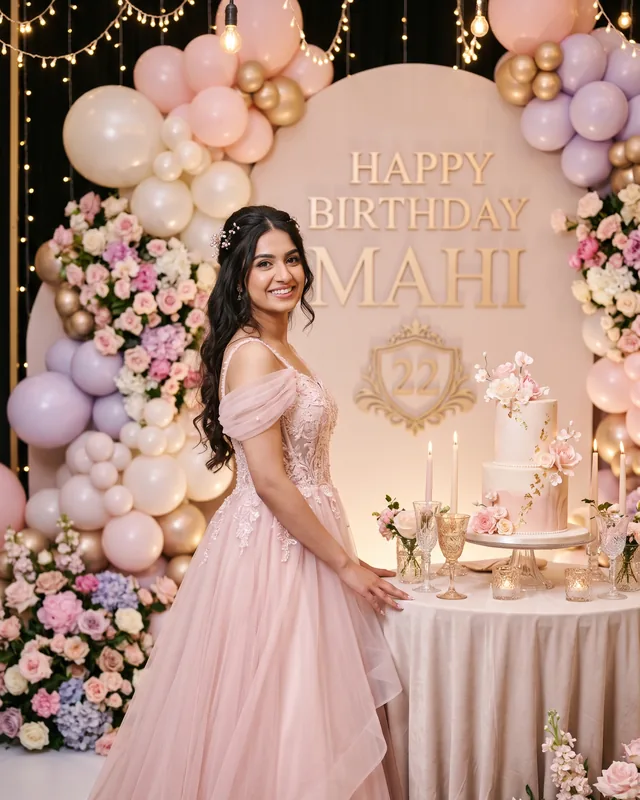
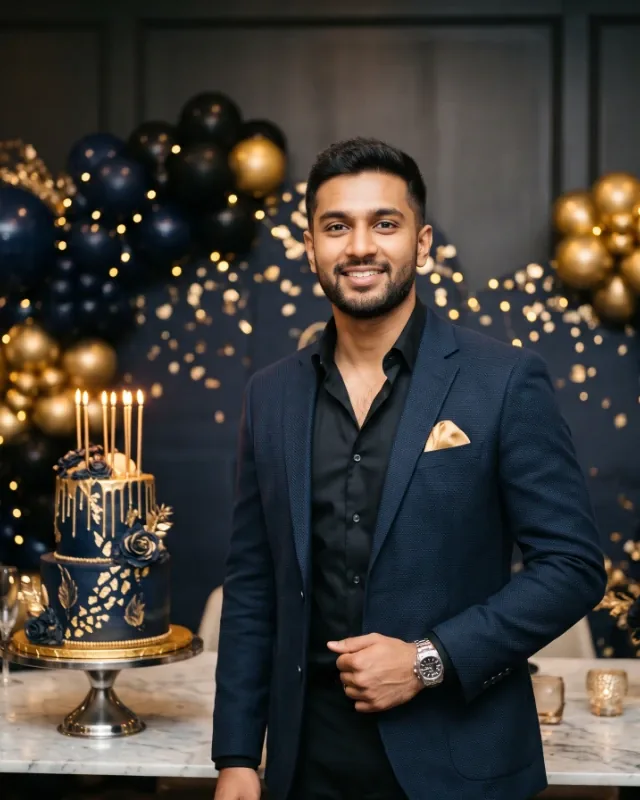
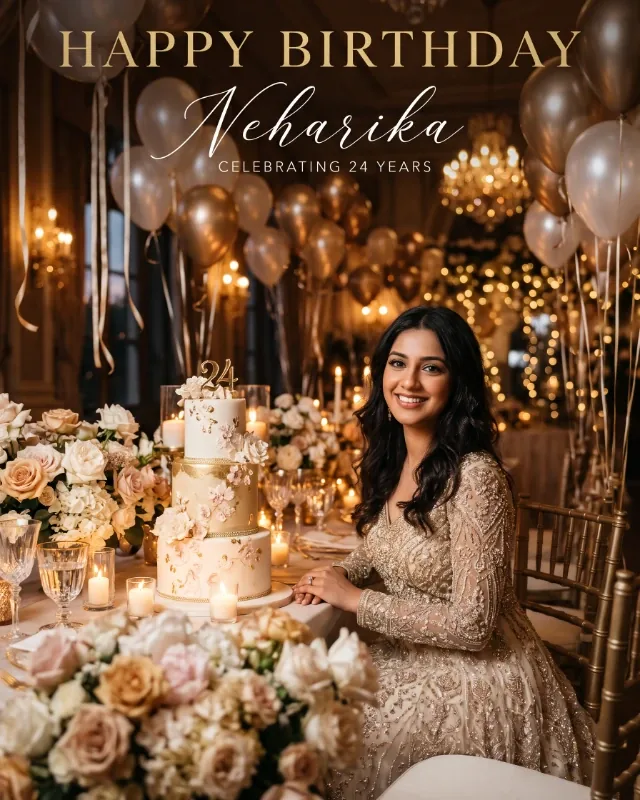
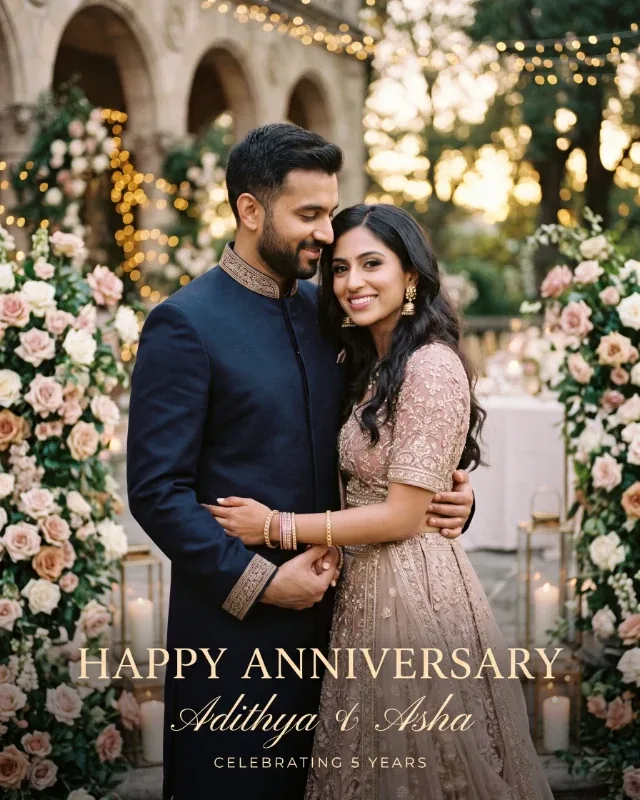
A bright milestone celebration portrait with roses, balloons and confetti, leaving space for your message.
The prompt
Create a bright, joyful, photorealistic congratulations portrait of an adult in a vertical 4:5 social media format, celebrating a new job, promotion or special milestone.
Use the supplied reference photograph as the authoritative identity source, preserving the person's exact facial features, skin tone, hairstyle and natural, radiant smile without generic face replacement.
Dress the subject in a tailored emerald-green or ivory blazer over a crisp silk blouse or shirt, holding a fresh bouquet of cream and champagne roses. Set the scene in an airy modern celebration venue with champagne-gold and pearl balloons, softly applauding out-of-focus guests in the distance, warm daylight windows and metallic confetti drifting gently through the air.
Use bright, flattering editorial lighting across a palette of emerald, ivory, champagne gold and warm beige, keeping the subject sharply focused against creamy bokeh.
Compose the vertical 4:5 portrait with generous clean, uncluttered space in the upper or lower area so a congratulations headline, name and milestone message can be added afterwards in a design app. Do not generate or render any text, headlines, calligraphy, names, dates, logos or watermarks anywhere in the image.
Maintain natural skin texture, accurate hand anatomy, crisp tailoring and full-frame lifestyle portrait quality in one single continuous image.
#congratulations
#celebration
#confetti
#portrait4:5
#negativespace
How to use this prompt
Choose your AI image tool
Open an AI image generator that supports the type of image you want to create.
Add a reference image when needed
Want to recreate a particular photo, pose, composition, outfit or person's appearance? Upload the relevant reference image to your AI tool before using the prompt.
If the prompt describes a completely new image and does not require a visual reference, you can use it without uploading one.
Use a photo you own or have permission to use. Follow the image tool's instructions for attaching reference images.
Copy and paste the prompt
Click "Copy Prompt" and paste the complete prompt into your AI image tool. Follow any specific reference-image instructions included in the prompt.
Generate and refine
Generate your image. If needed, adjust details such as pose, clothing, expression, lighting or background to get the result you want.
Kriyano does not generate images itself — the result always comes from the tool you choose, so review and refine it there.